This website uses cookies for visitor traffic analysis. By using the website, you agree with storing the cookies on your computer.More information

VisionX Previewer - Menu options

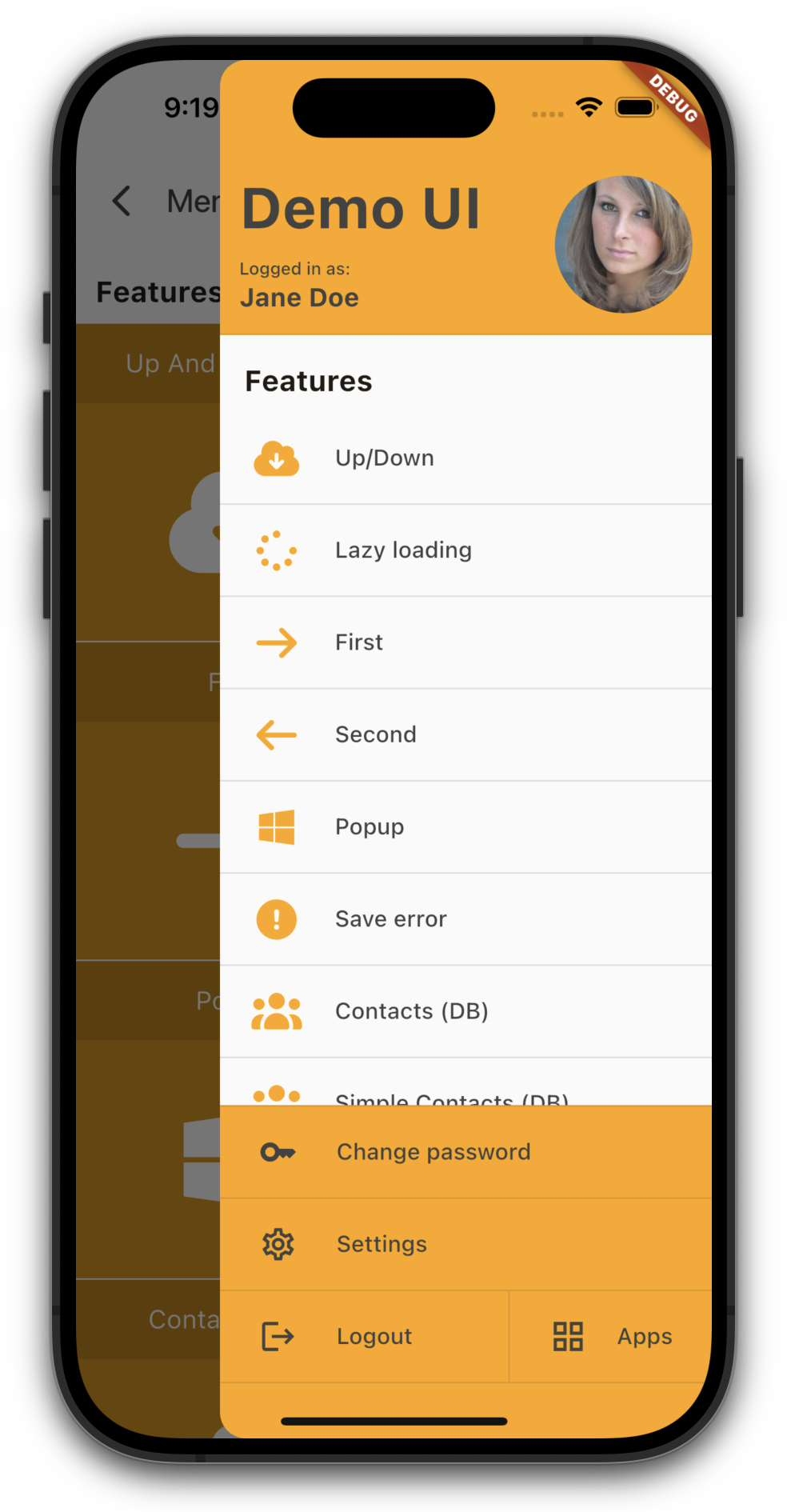
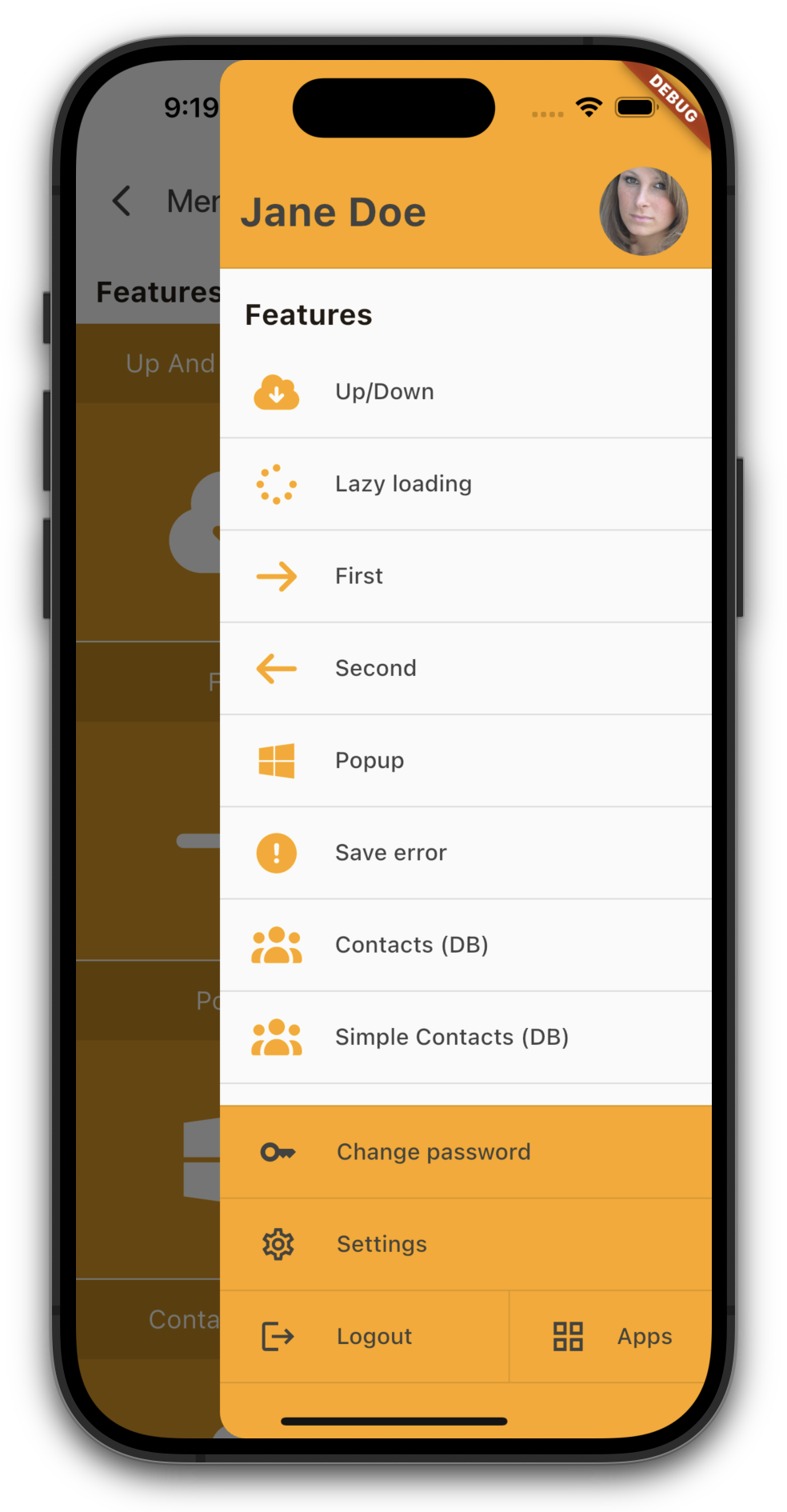
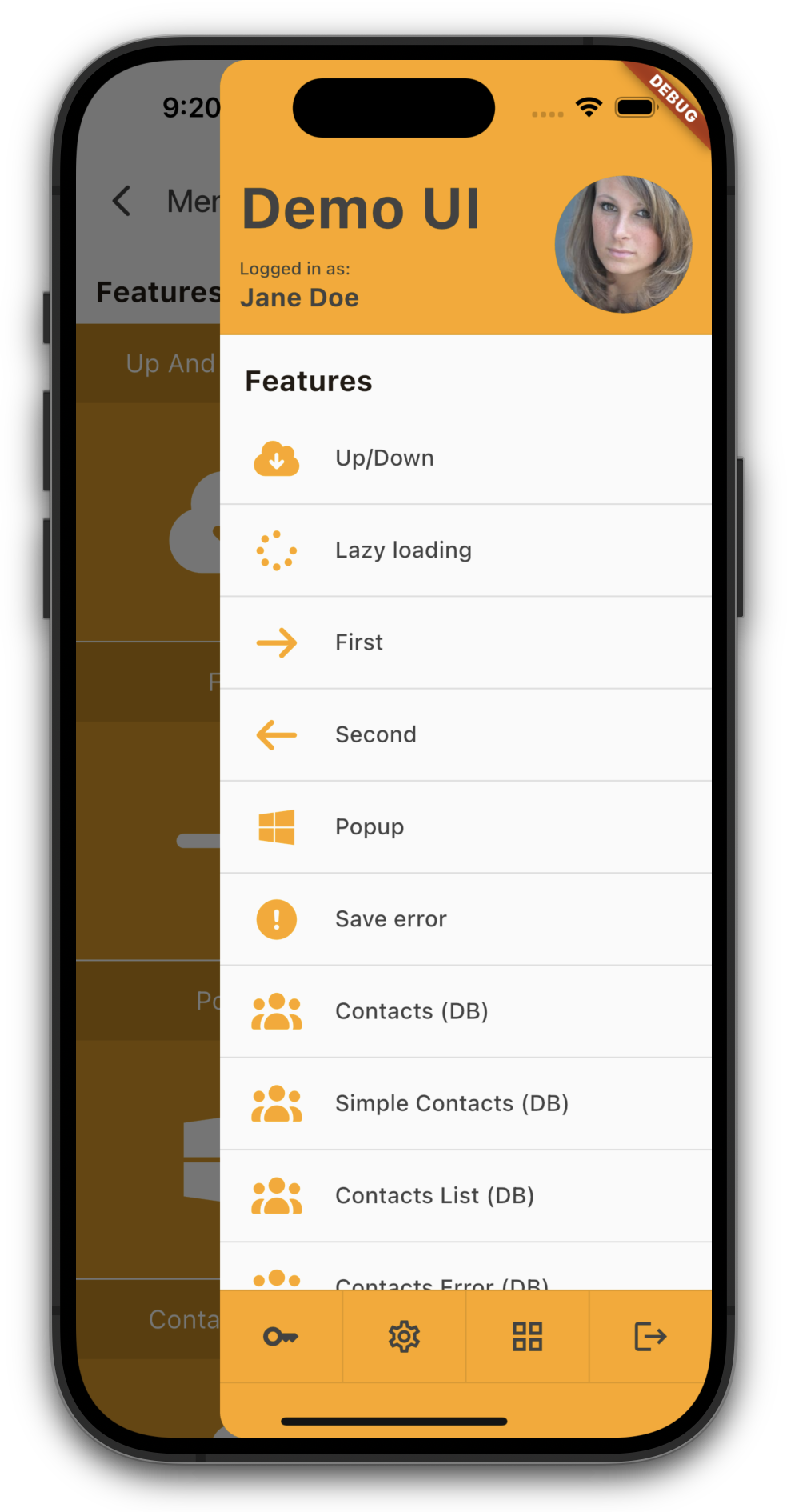
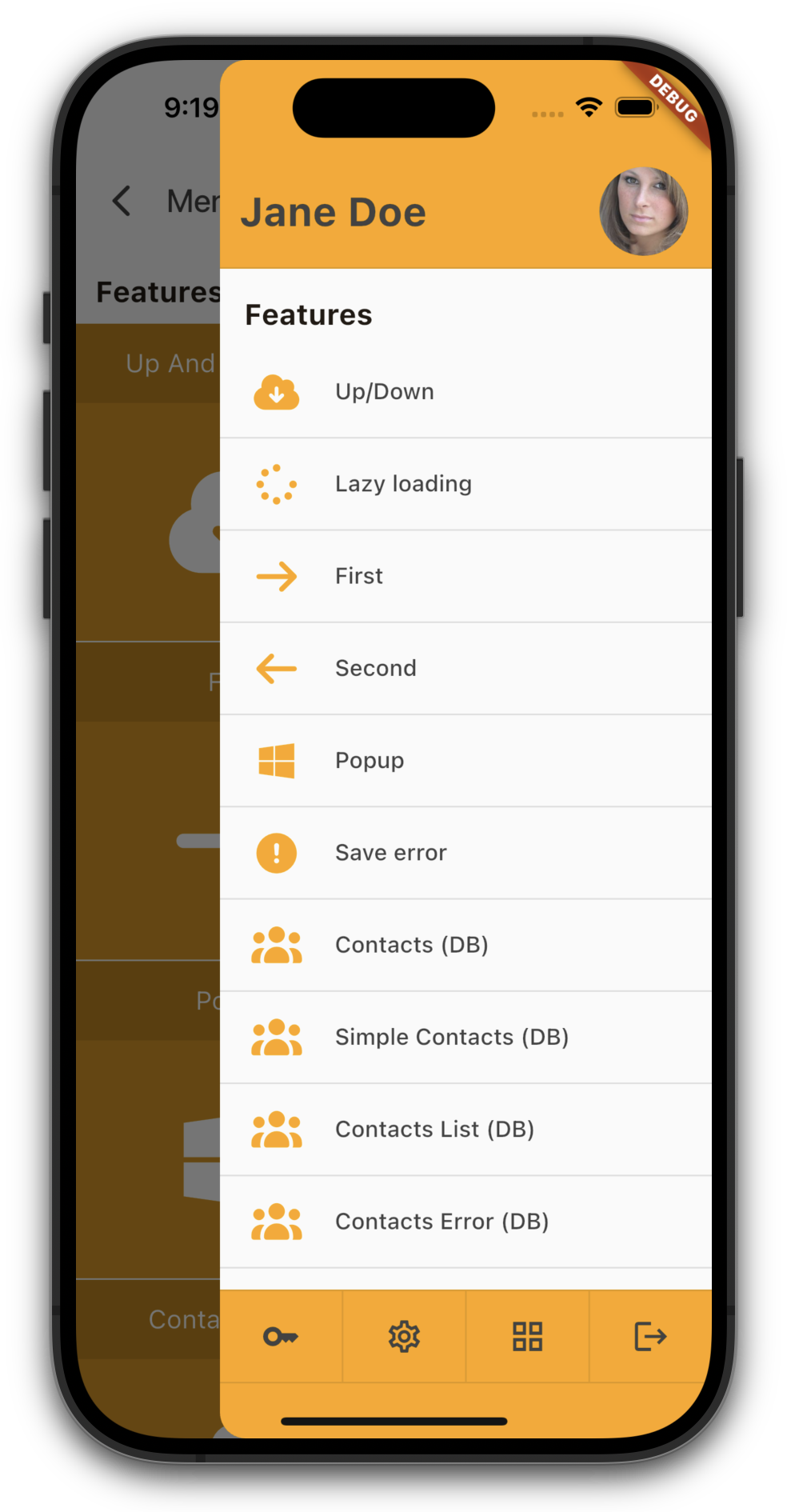
Our drawer menu just got more flexible.

With our new compact mode for the header and/or footer, you can free up valuable space for your menu items - perfect for screen-heavy applications.
Whether you prefer a generous, information-rich layout or a sleek, space-saving design, the choice is now yours.

Here are the differences:

Standard menu

Standard menu

Compact header

Compact header

Standard menu

Standard menu

Compact footer

Compact footer

Standard menu

Standard menu

Compact header and footer

Compact header and footer

Have a nice weekend!

VisionX Previewer - Tabset update

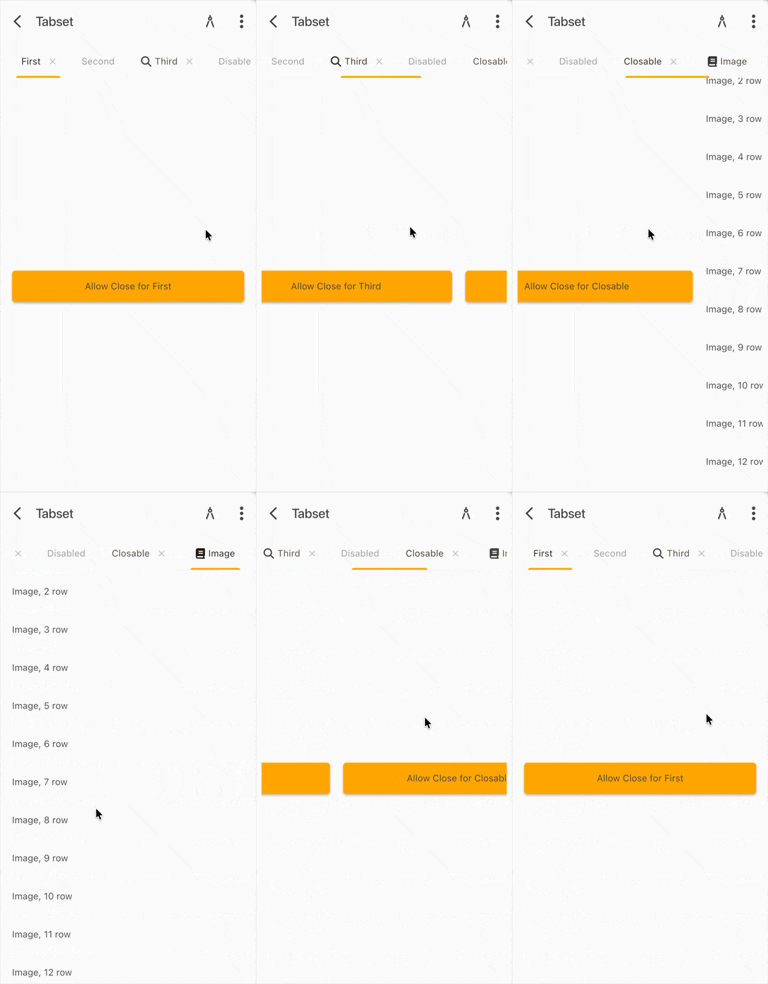
To kick off the week, we're rolling out a brand-new tabset for you. Our previous implementation was a bit too static and didn't handle swipe gestures as smoothly as we wanted. It also lacked the fluidity you'd expect on modern mobile devices.

A tabset should feel effortless - fast, responsive, and intuitive. That's why we’ve taken this component back to the workshop and given it a serious upgrade.

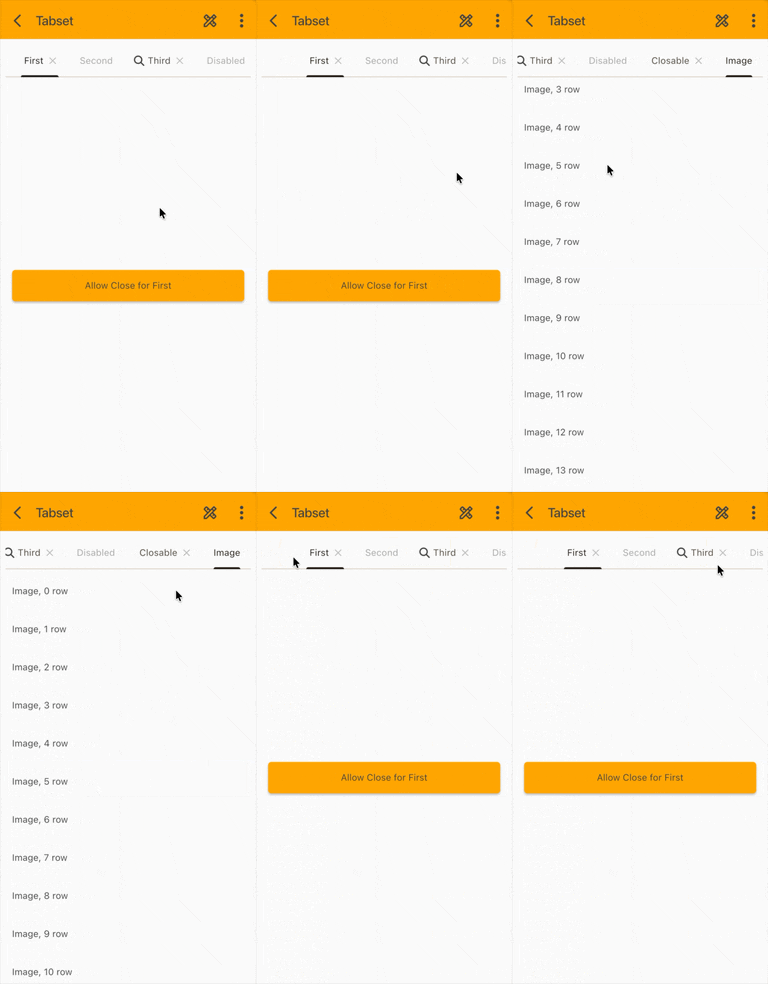
Here’s a quick look at how the new version stacks up against the old one:

Tabset (old)

Tabset (old)

 
Tabset (new)

Tabset (new)

That makes using a tabset so much more fun ;-)

VisionX Previewer - Style the menu

The next highlight in our styling offensive: the Main Menu.

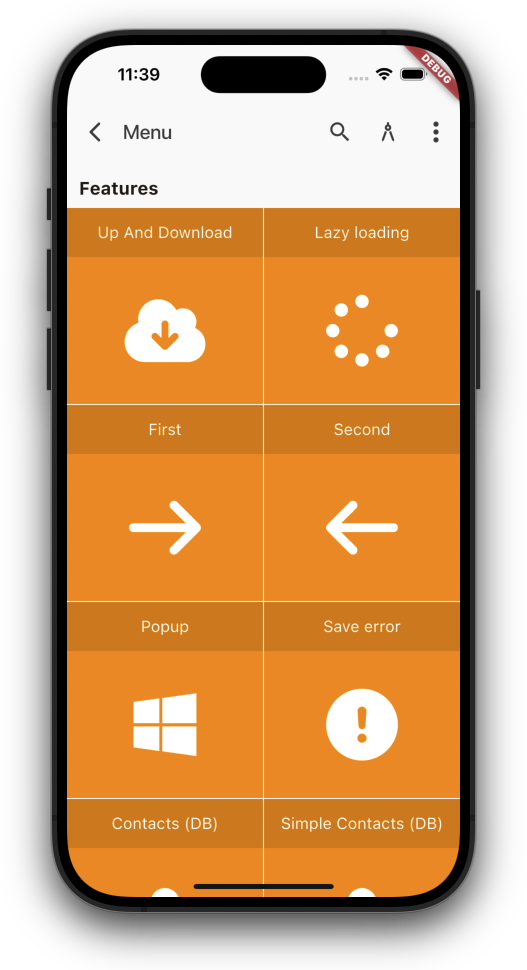
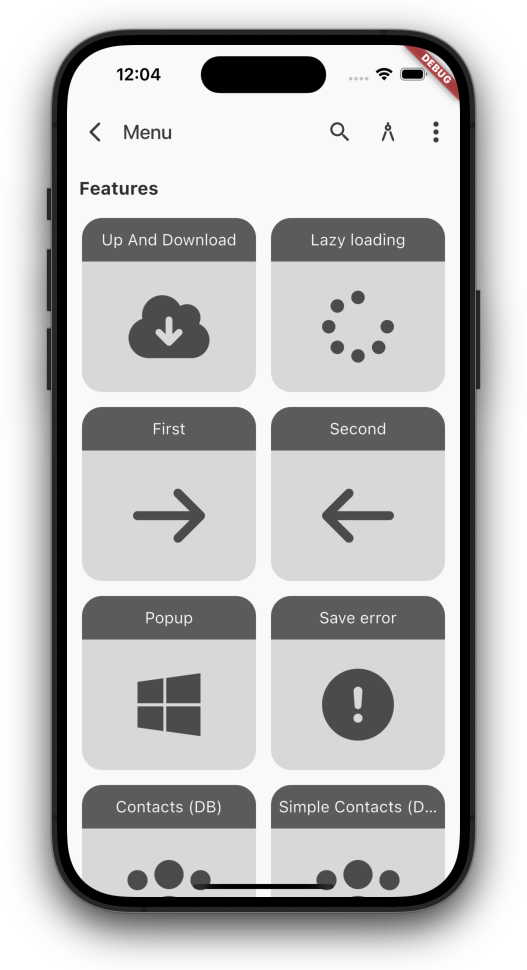
With just a few tweaks to spacing, corner radius, and colors, you can give your app an entirely new look. A couple of entries in mobile_style.mxl — and your app transforms instantly.

Main menu (old)

Main menu (old)

Main menu (new)

Main menu (new)

Look forward to more customization options ;-)

VisionX Previewer - Styling

You can now customize your apps better than before.

You already have the ability to design the screens exactly the way you want. You decide the layout and the positioning of the elements according to your preferences. With a few style settings, the app can then be visually enhanced.

Until now, the entire application frame, such as the menu and the appearance of input fields, buttons, tables, etc., could only be customized in the native code. But that is not something you can do in just a few seconds.

That is why we started making parts of the app/theme customizable. For example, you now have the option to define the corner radius, control button colors centrally, and much more.

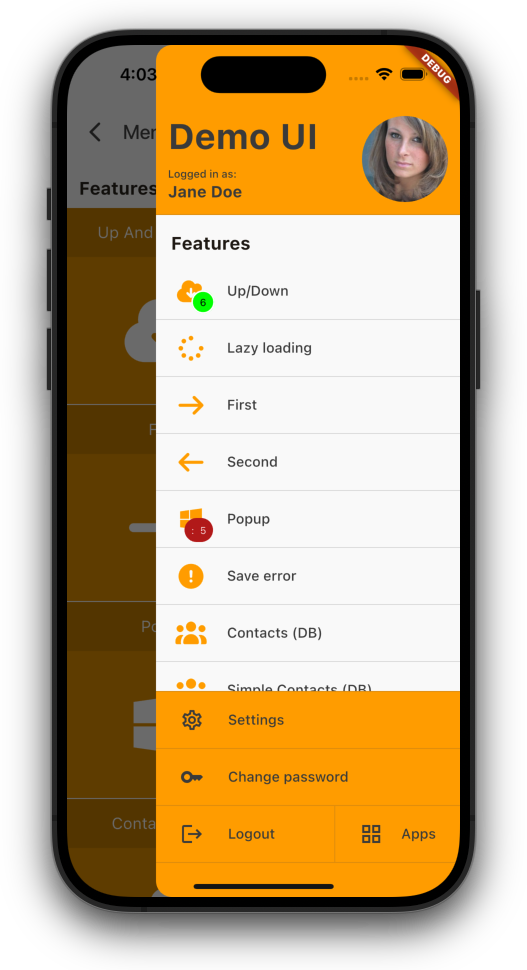
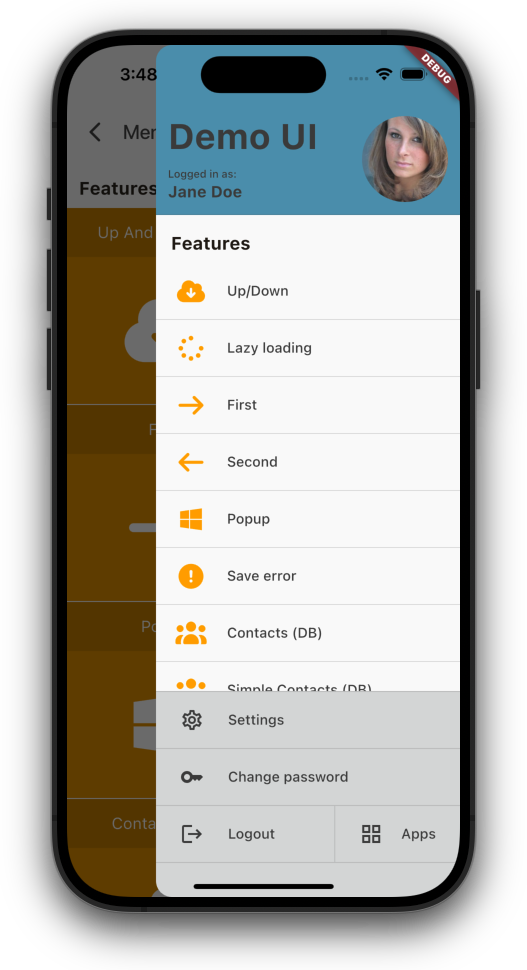
Here is a small example:
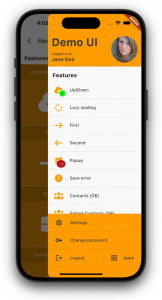
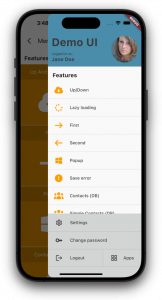
Menu (old)

Menu (old)

Menu (new)

Menu (new)


Just set custom colors for menu header and footer.

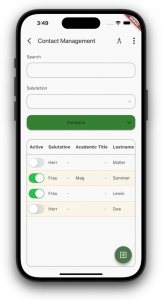
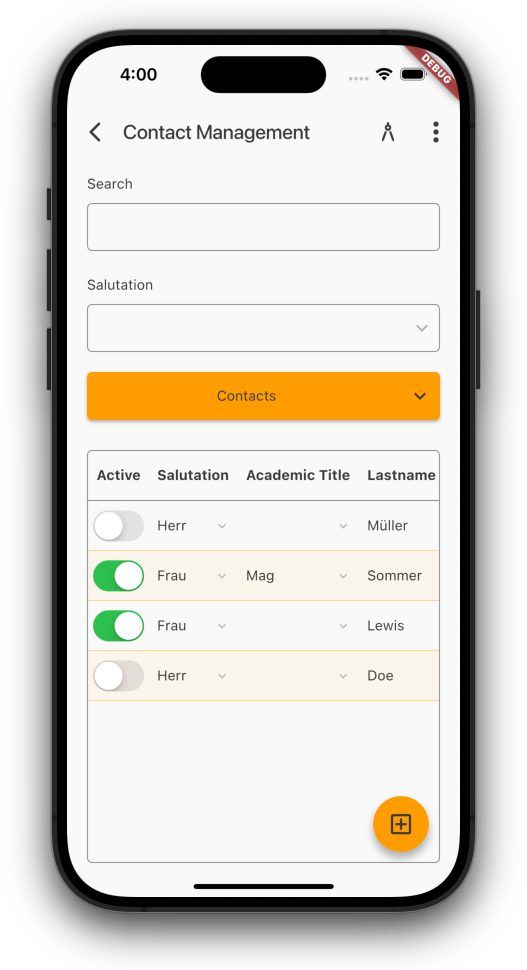
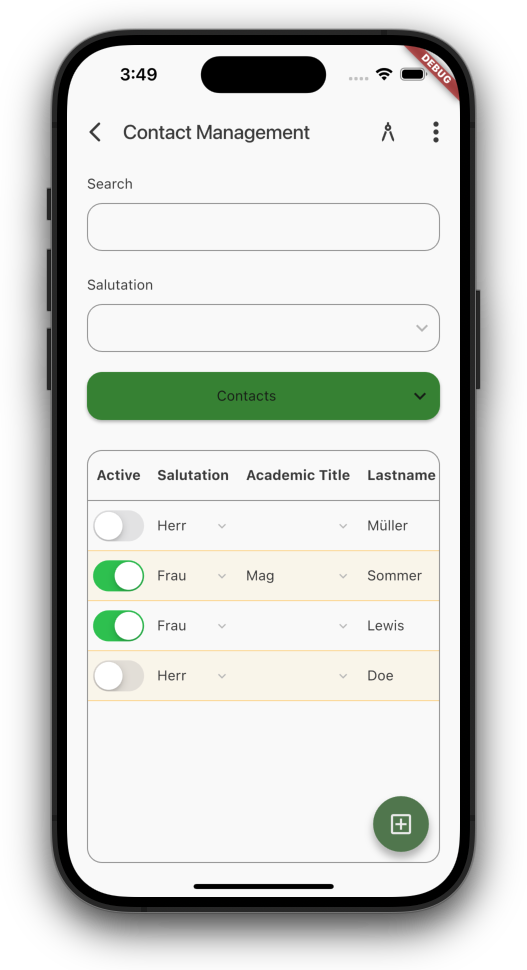
Next example, an example screen:
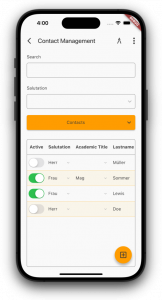
Default color

Default color

Custom colors

Custom colors


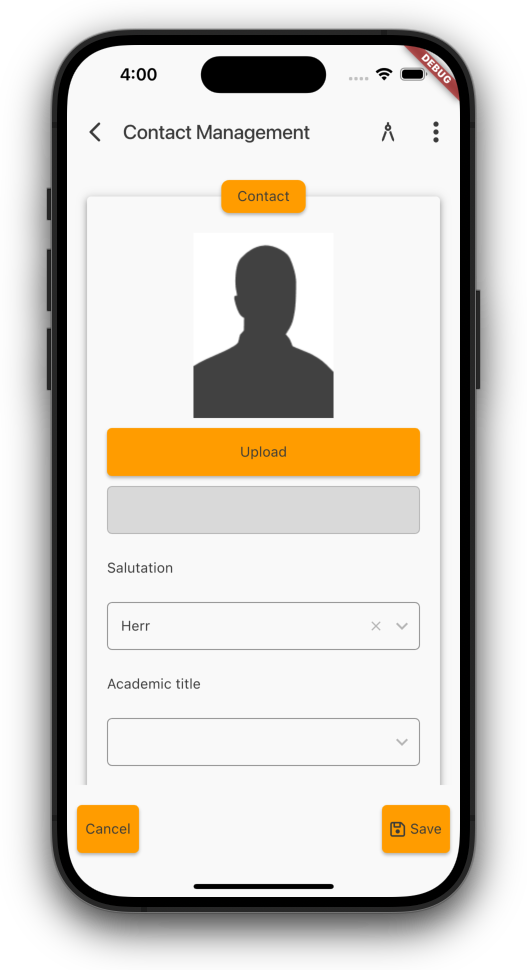
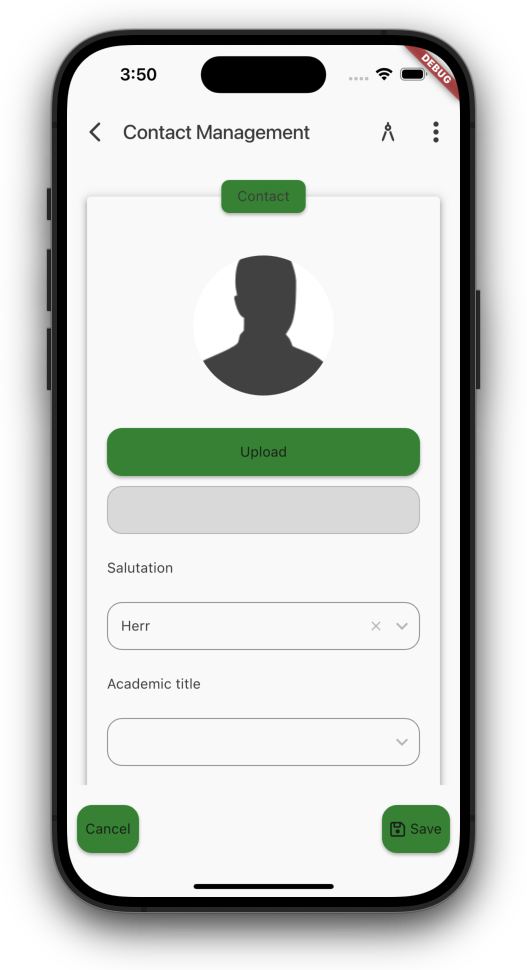
Use custom colors for buttons, custom border radius for buttons, input fields, tables.

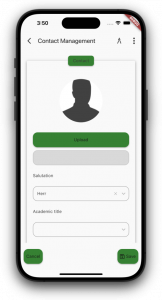
Show images as avatar:
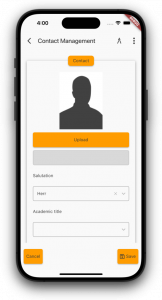
Image (portrait)

Image (portrait)

Image (avatar)

Image (avatar)

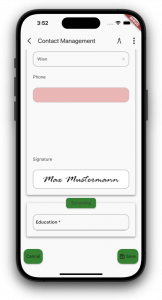
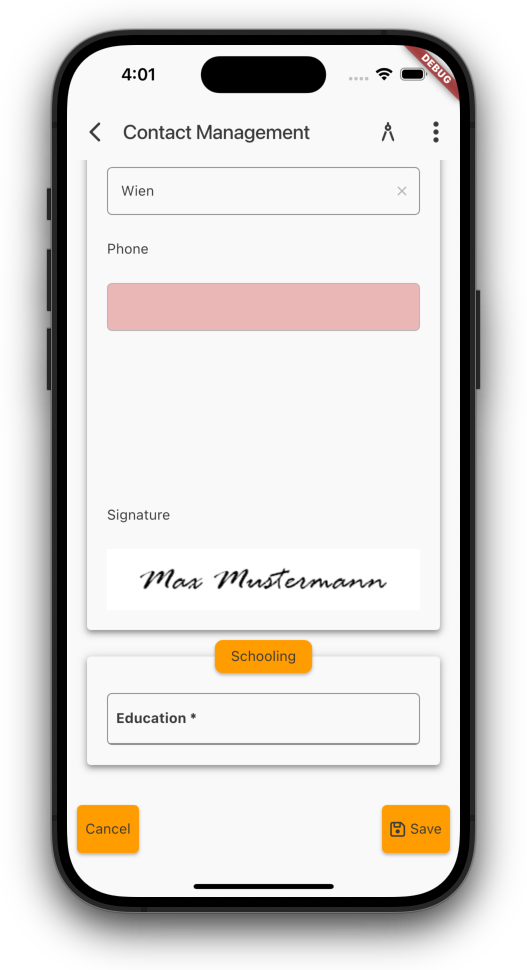
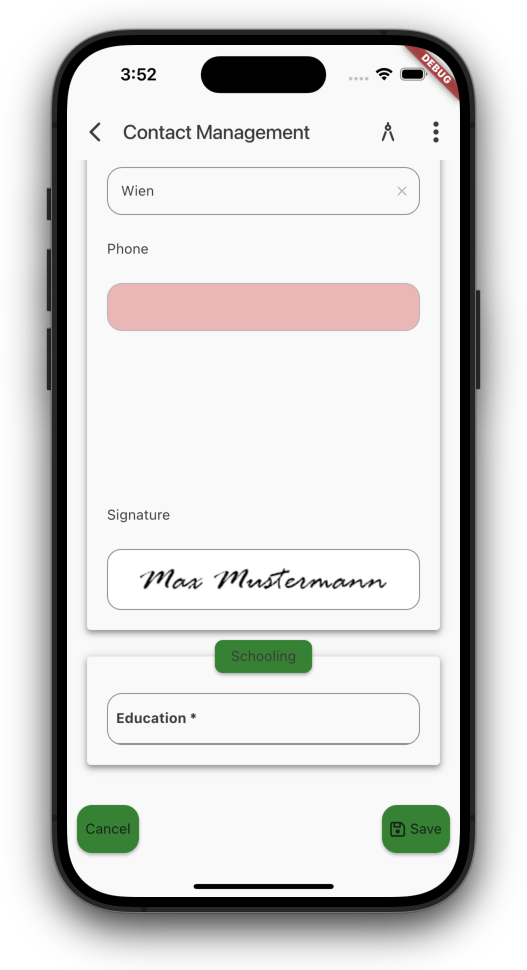
If you want, show border around images like this one:
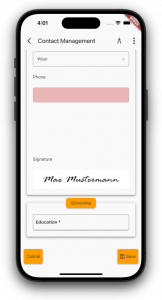
Signature (no border)

Signature (no border)

Signature (border)

Signature (border)

And as a little extra, menu button arrow now animates:
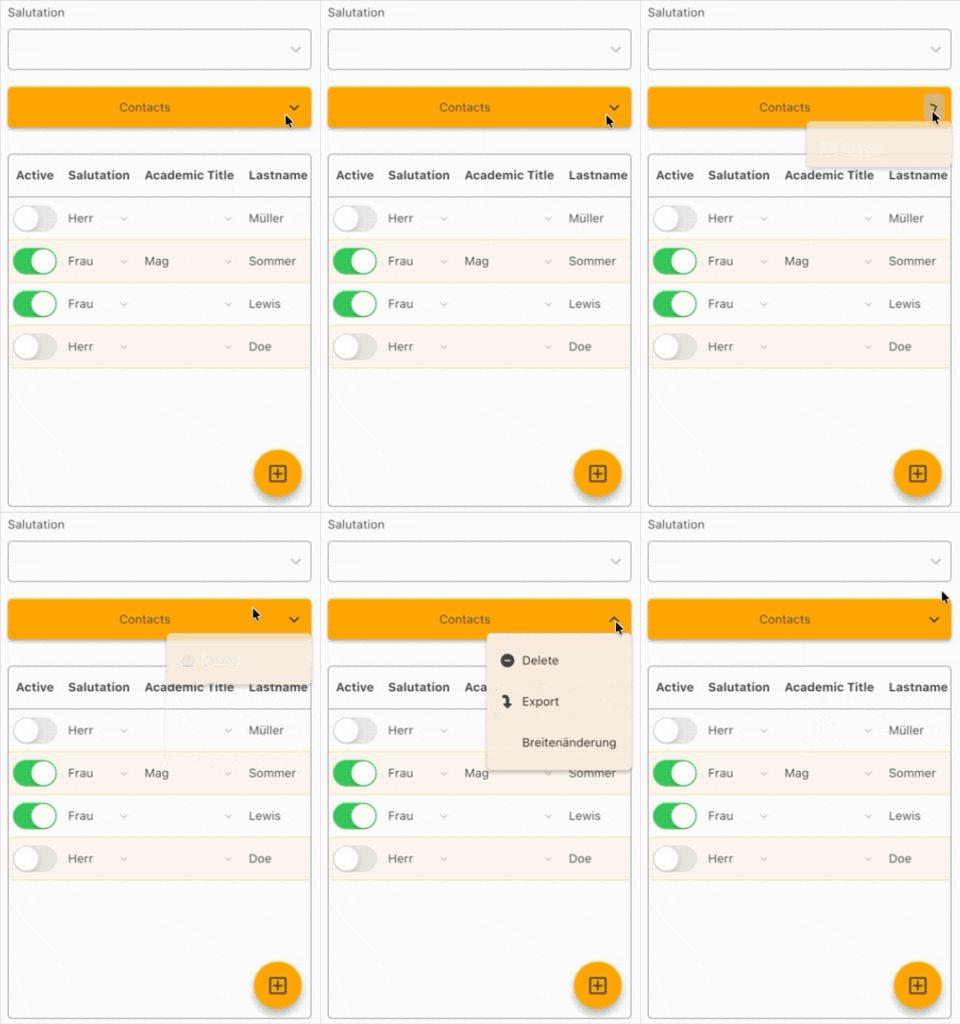
Buton animation

Buton animation


Look forward to more customization options ;-)